Procedure for Manually Configuring Novell Small Business Suite 5.0 for Internet Access
1.0 Introduction
This document outlines a procedure for manually installing BorderManager onto a Novell Small Business Suite 5.0 Server. This can overcome an issue that can arise when the server was first installed without any IP support or several of the IP related sub-programs. Under these circumstances using the NICE (Novell Internet Connection Expert) does not allow the BorderManager to be successfully installed or configured.
This document also outlines how to install the Novell Small Business Suite 5.0 server to allow the simulation of these issues.
Note: The Official Novell solution to this problem is outlined in TID 10019692 (Re-install or do manually)
2.0 Installing the server.
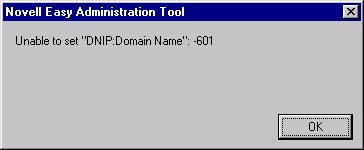
This section outlines how to install a fresh server so that it can simulate the issues that we are attempting to overcome. You know you have the problem if you get the following error:
Install the Novell SBS 5.0 server without accepting any of the settings.
These following tasks occur on the server after the initial installation has occurred and the graphical installation program has started:-
Choose Custom Installation
Name Server: (In our example: RALEIGH)
Protocols: Select IPX only (Select both Frame types or only the one that you require if your network only utilizes it.)
Tree Name: (In our example: PENFOLD)
Context: (In our example: EDEVAS)
Admin: cn=admin.o=edevas (or .admin.edevas)
Password: *******
Do not accept any of the optional installation products.
Complete the installation and restart the server.
Create a workstation 98 or NT.
Install the Novell client.
Log into the new network as administrator (.admin.edevas)
You will now be presented with the Novell Easy Administration Tool automatically. This will only occur if you log into the network as administrator. If this is a new installation then the only user to exist at present is administrator.
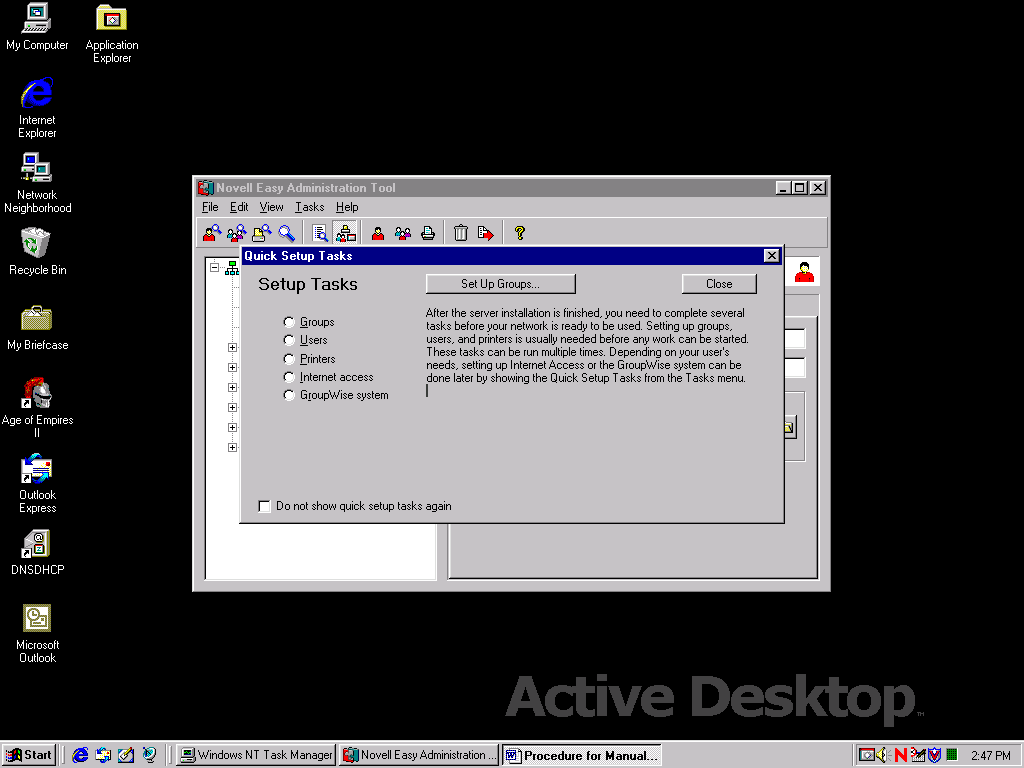
Figure1 Novell Easy Administration Tool
Verify that you have the problem that we require, to ensure that the manual configuration is successful.
Run the NEAT application.
Run the Internet Access Wizard.
Fill in all the required information.
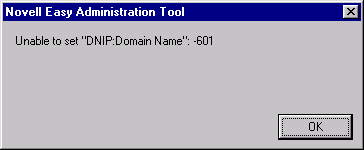
On the final action to implement the settings that you need then you will receive the following error:
3.0 Install IP on the Private LAN Card
Note: See TID 10010836 on installing MPR and NIAS to access your ISP
Go to the System Console on the Server and “LOAD INETCFG”.
Most installations have not run this application before so you will be presented with the following screen:
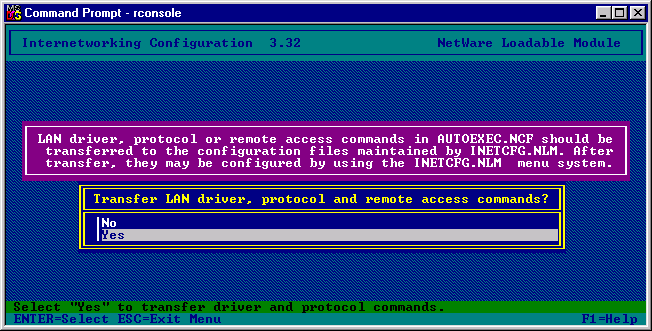
This is quite normal, you must allow the application to transfer the settings from AUTOEXEC.NCF to INETCFG.NCF.
You will now be presented with the following screen:
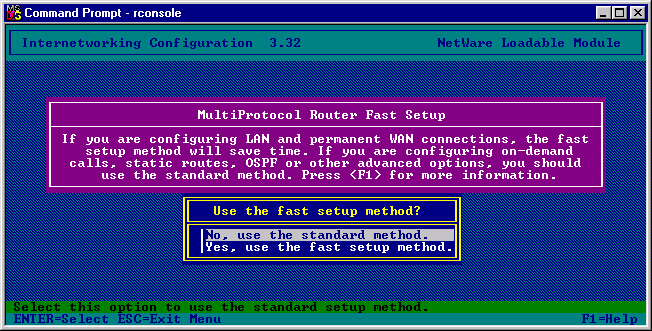
We are configuring an on-demand WAN connection using our Modem to the Internet, so we will need to use the Standard Installation method. After all this we will be presented with the normal INETCFG screen:
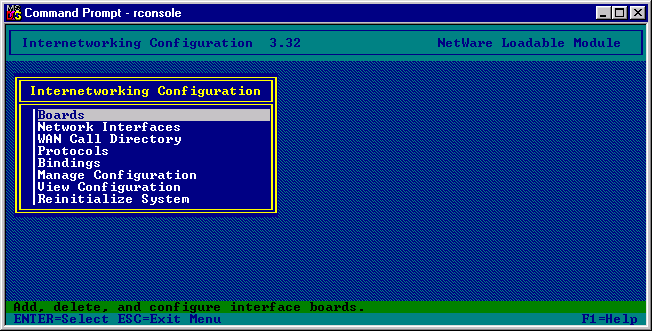
From the INETCFG Main menu select Protocols.
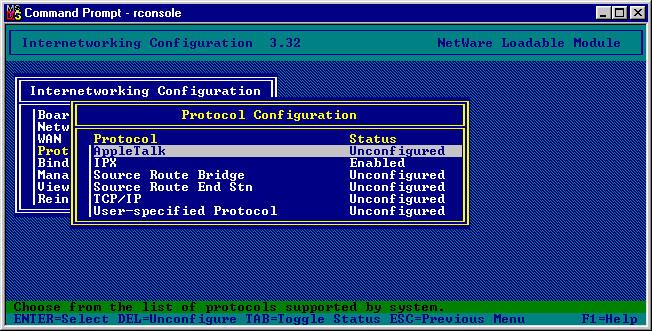
From the Protocol Configuration Menu select TCP/IP.
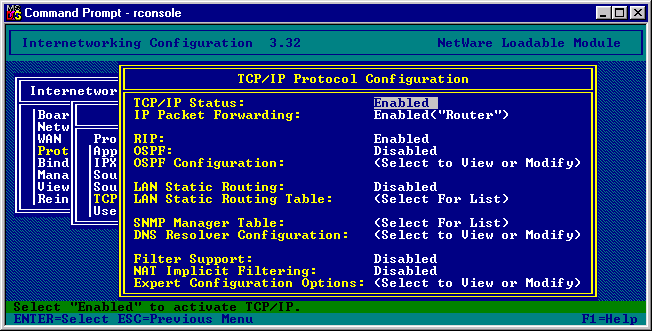
Leave all the entries as they are, later we will be modifying the “LAN Static Routing”. Confirm the update of the TCP/IP settings, and then return to the main menu. From the main menu select Bindings.
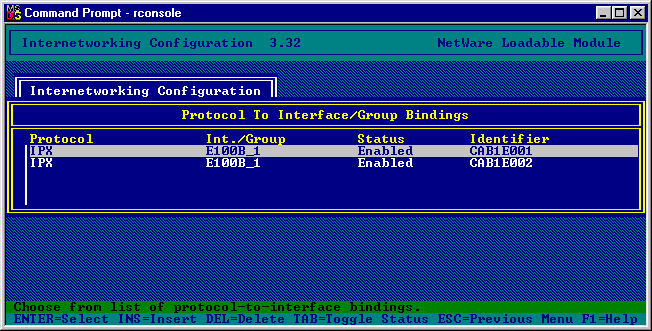
Press the INSERT key and a binding creation menu appears.
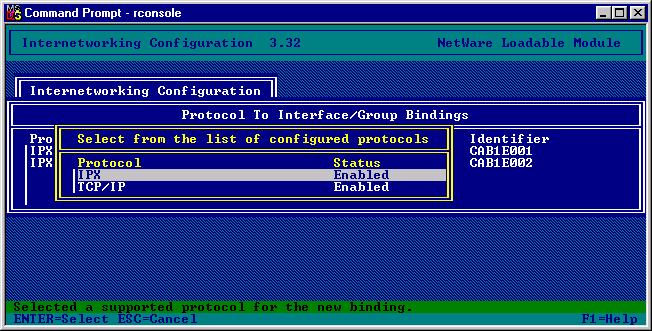
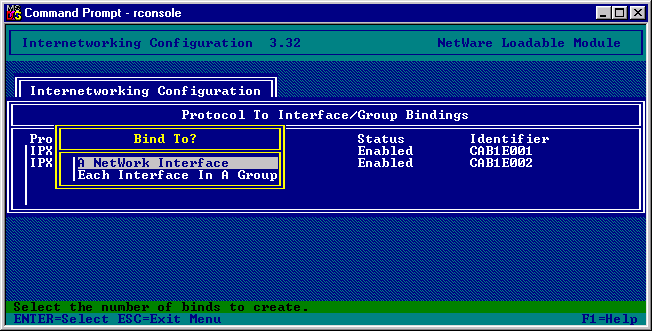
Select TCP/IP and you will now be asked, what you wish to Bind to, select “A Network Interface”
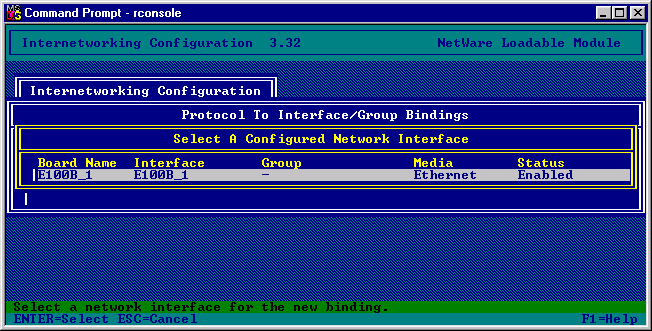
Select your Network Interface card connected to your company’s Local Area Network.
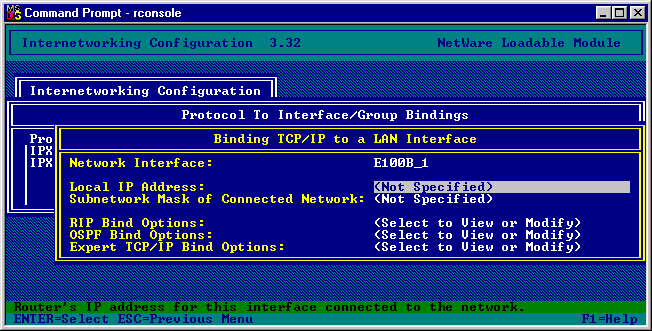
You will now have to select an IP address and the appropriate Subnetwork Mask for the server on your network. This does not necessarily need to be a legitimate IP address on the Internet, if anything this should be one conforming to your company’s standards.
In our example we will use the following details:
IP Address: 152.152.0.31
Subnet Mask: 255.255.0.0
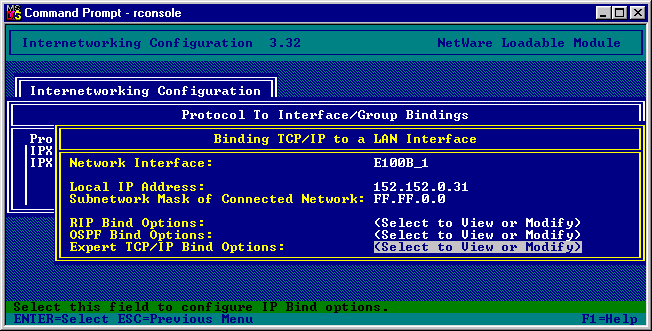
Press Escape and then confirm the TCP/IP settings.
You will now be presented with the following Bindings:
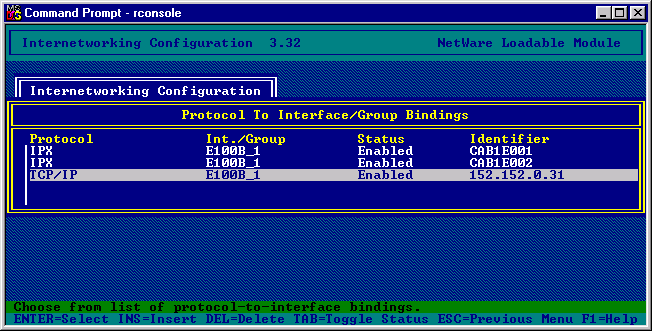
Now come out of the application completely and confirm the saving of the settings that we have entered.
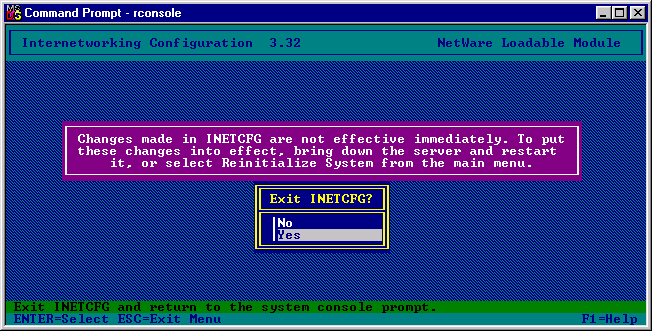
To activate the changes the server must be rebooted.
4.0 Install additional Internet based communication applications
· From the X-Window Graphical Novell Screen on the server click on the Novell button in the bottom left hand corner, a small menu will appear.
· Click on the Install option, this will now display the “Installed Products” window.
· Once these items have been selected press the “Next” button.
· You must now login to the network using the admin account.
· You will now be presented with a list of the products that will be installed onto the server. Press the “Finished” button to proceed with the installation.
· Once complete you will be asked whether you wish to view the readme documents or close. Close them and restart the server (Checking that there are no Floppy disks or CDROMs in any of the drives).
Install Modem and allow for dynamic communication through the Modem
Load INETCFG
Select Boards
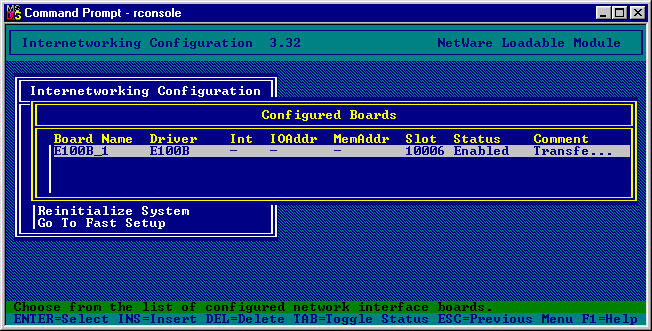
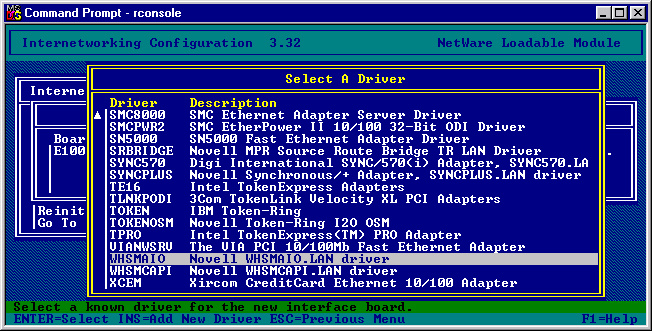
Press the “Insert” key to allow the installation of another Board. You will be presented with a list of network cards to install select WHSMAIO.
Give the board a name COMPORT and you will now be presented with a configuration screen.
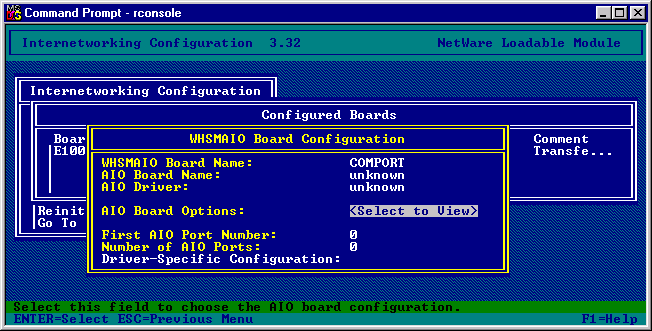
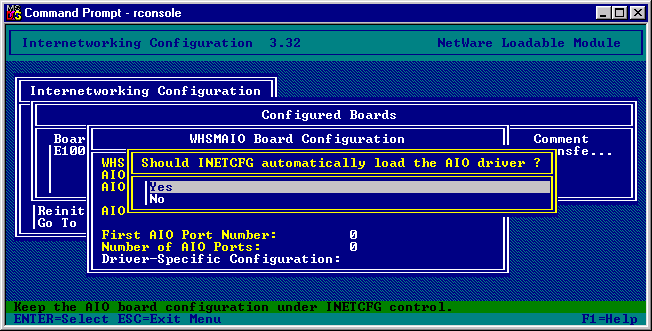
Select an AIO Board Option, then say “yes” to INETCFG automatically loading the AIO driver.
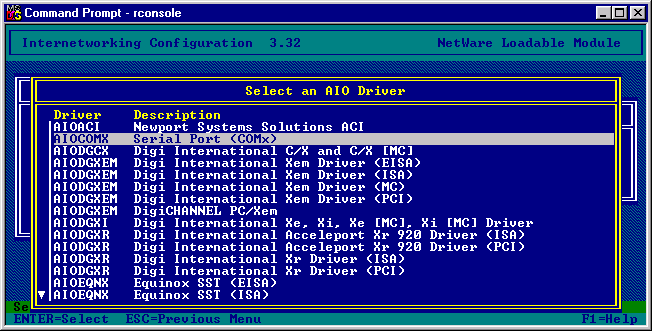
Select AIOCOMX Serial Port (COMx).
Select the Serial port settings for the “comport” that you will be using. (Usually the defaults should be adequate otherwise verify them in the machines BIOS)
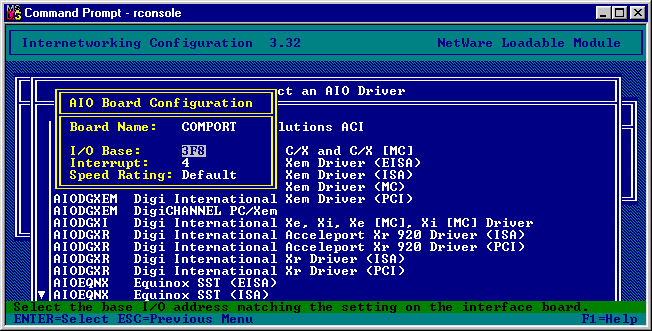
Your settings should now look like the following:
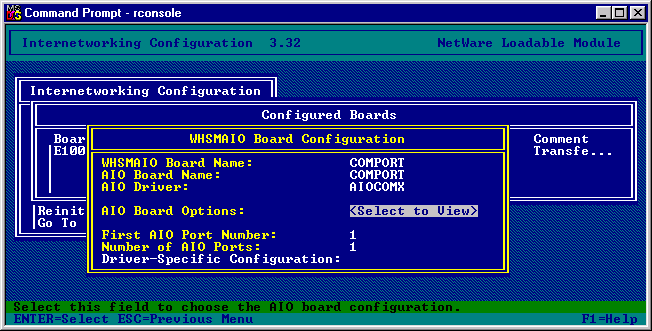
Save the changes.
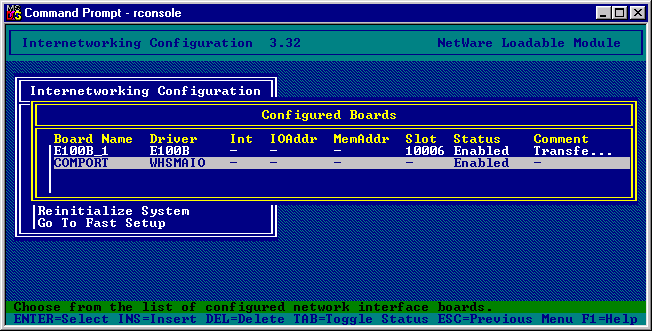
Select network interfaces.
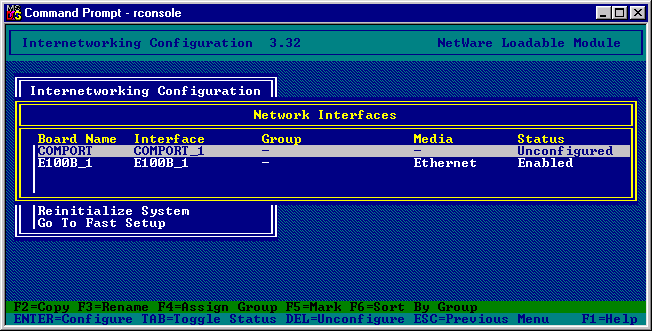
Now select the COMPORT and agree to the PPP routing.
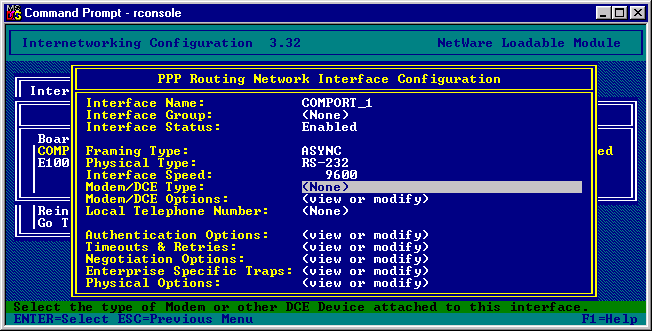
Change the Interface Speed to that supported by the modem, and select the Modem/DCE Type and select the appropriate modem.
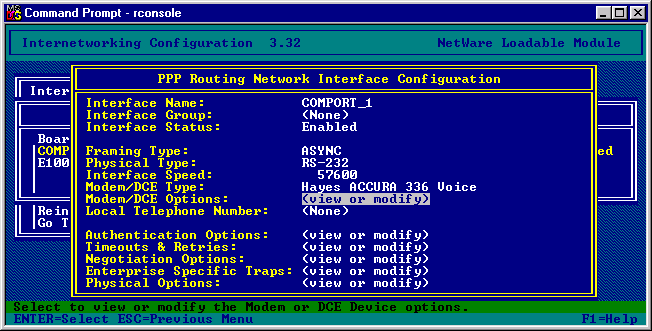
Save the changes and now select the “WAN Call Directory” from the main menu.
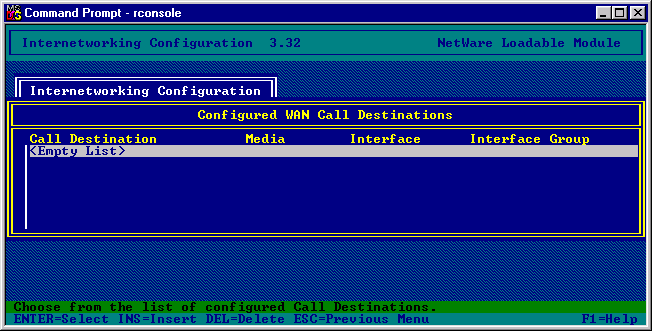
Press “Insert”
Give the call destination a name, e.g. “ISP”, accept this and also accept the PPP routing methodology.
You will now be presented with the call details.
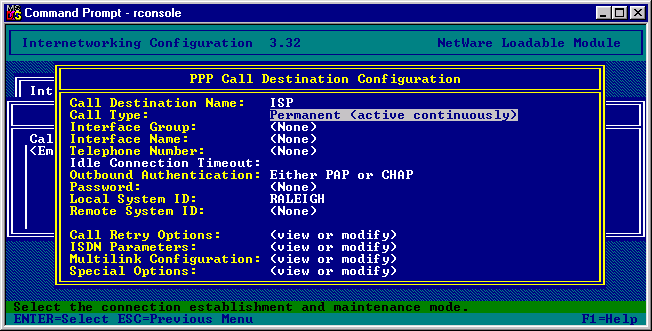
Change the Call type from “Permanent” to “On Demand”.
Select the Interface Name as “COMPORT_1”
Enter the ISP’s telephone number.
Modify the Idle Connection Timeout to the amount of time require. (I usually use 3 minutes)
Enter your ISP’s account password in. (I used ****** to indicate this on screen)
Enter your ISP’s username as the Local System ID. (Leave lower case)
Create a Remote System ID.
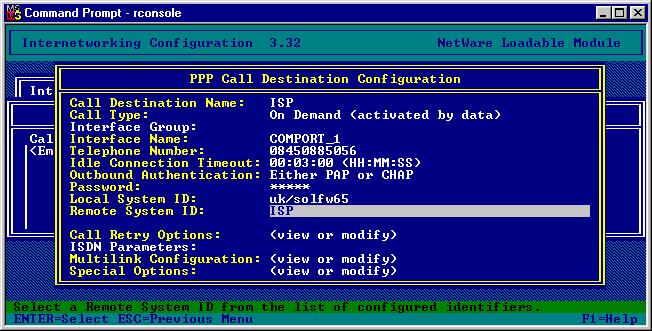
Now confirm and save your settings.
From the main menu select Protocols. Then select TCP/IP Protocol Configuration, and finally select DNS Resolver Configuration.
Now enter the Domain name for your site and also enter the DNS servers on the internet.
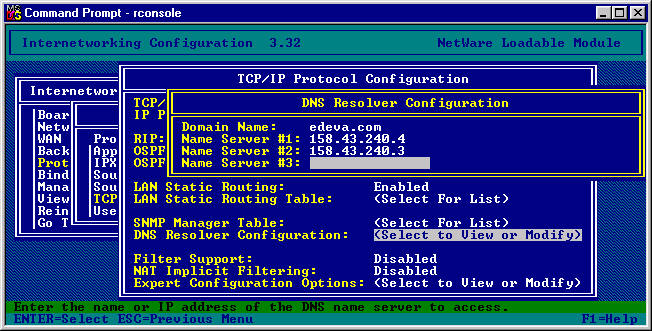
Update the changes to the TCP/IP settings.
From the main menu select Bindings.
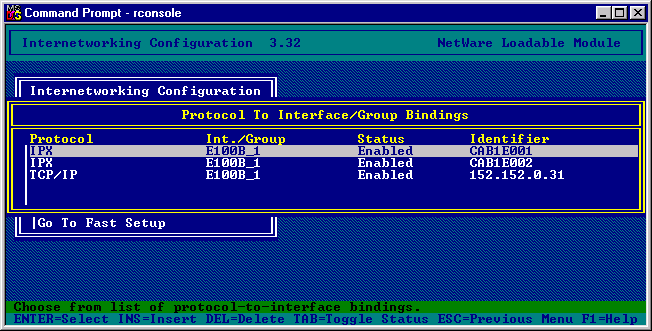
Press “Insert” and select the TCP/IP protocol. Then select “A Network Interface” and finally select the “COMPORT” board.
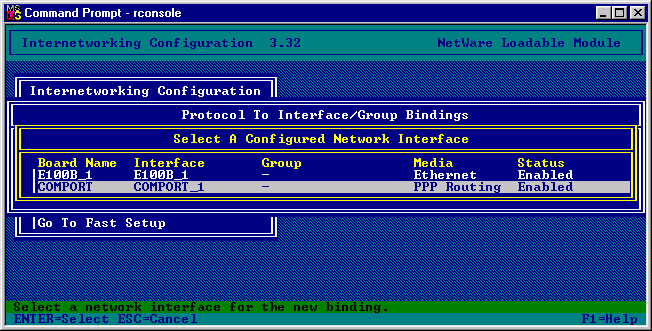
You will now be presented with the following:
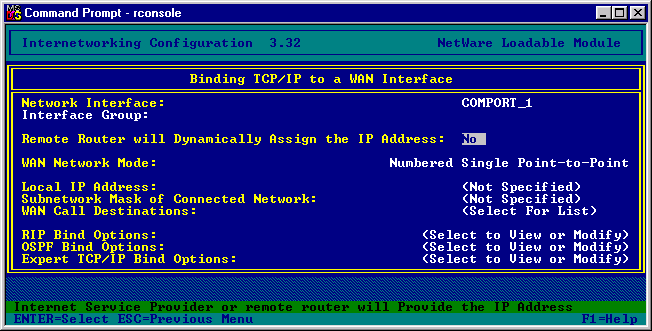
Change the “Remote Router will Dynamically Assign the IP Address” to YES.
Select the WAN Call Destinations.
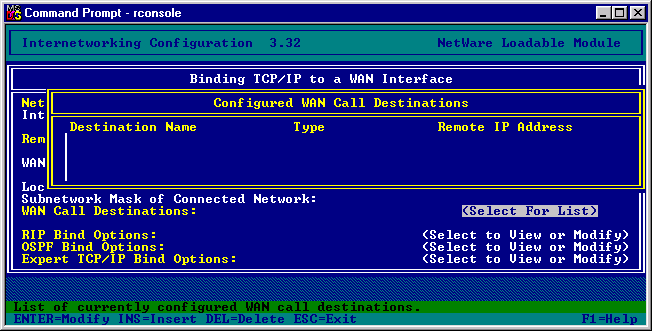
Press the “Insert” key to add a WAN Call Destination.
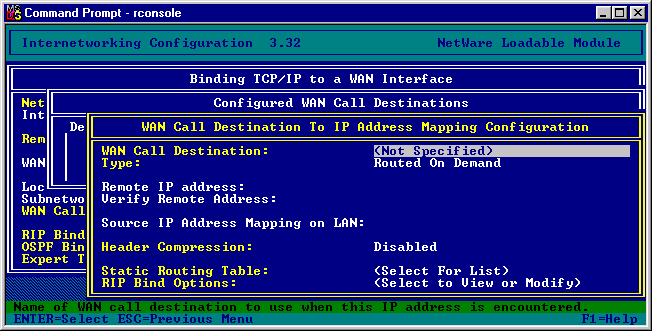
Select the WAN Call Destination as the one we created earlier.
Add in a “Static Routing Table” for this entry.
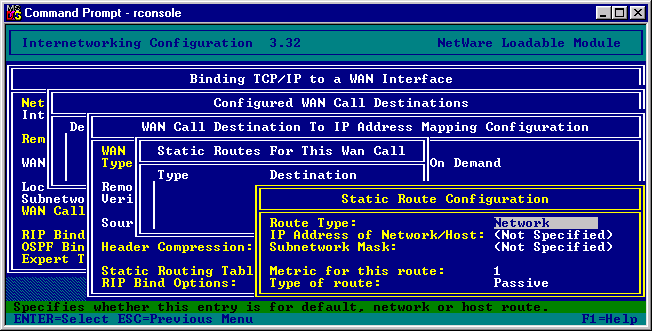
Select the “Route Type” as the Default Route, and confirm the settings so that your table will be as follows:
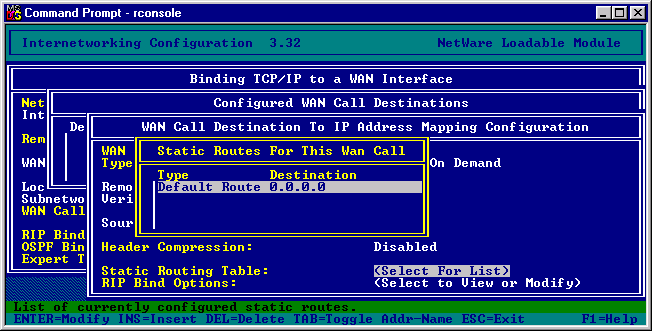
Save the Database changes we have made and then return to the Bindings screen.
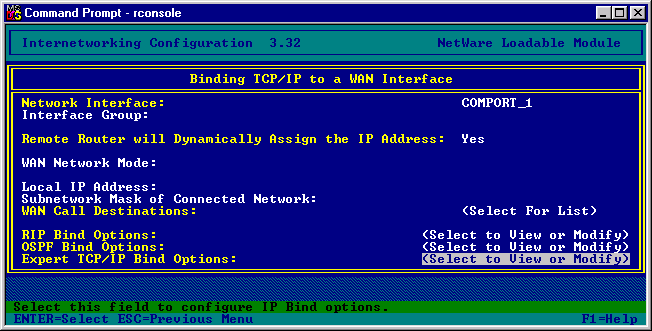
Select the Expert TCP/IP Bind Options.
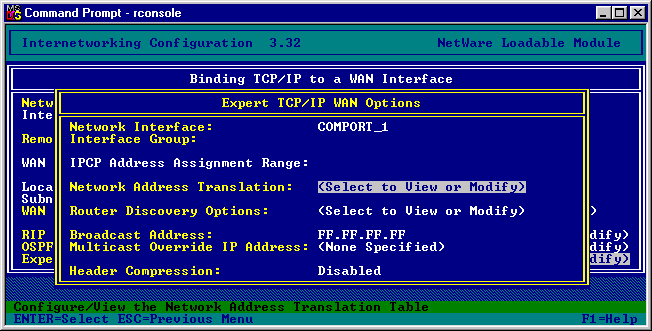
Select the Network Address Translation option.
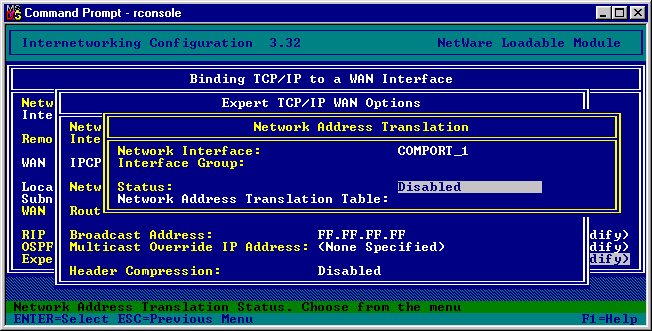
Modify the status field to read “Dynamic Only”
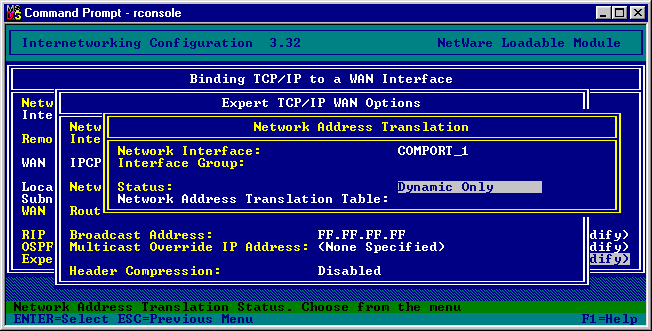
Save all the changes that we have entered.
After the changes have been completed and the server has been re-booted it will now act as a router to the Internet.
5.0 Configuring NIAS
A useful TID to refer to is 10010836 about configuring the MPR and NIAS.
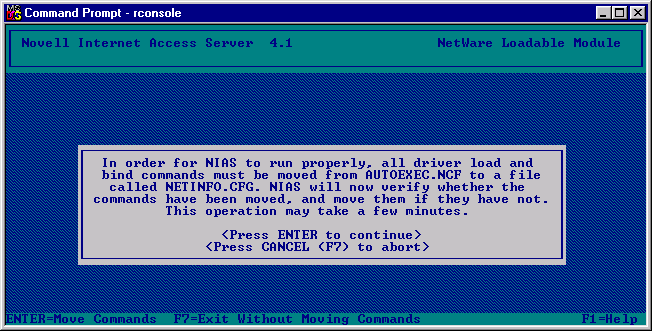
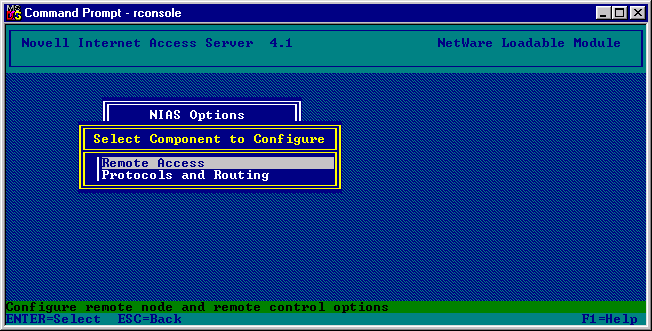
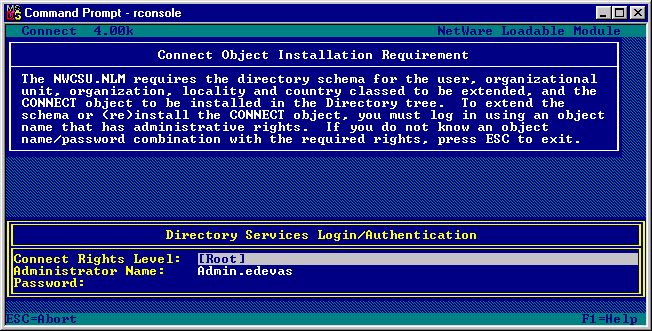
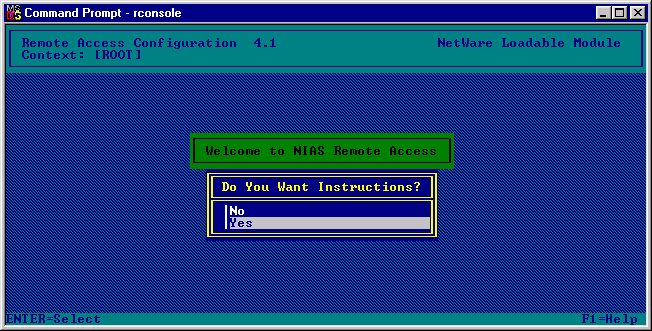
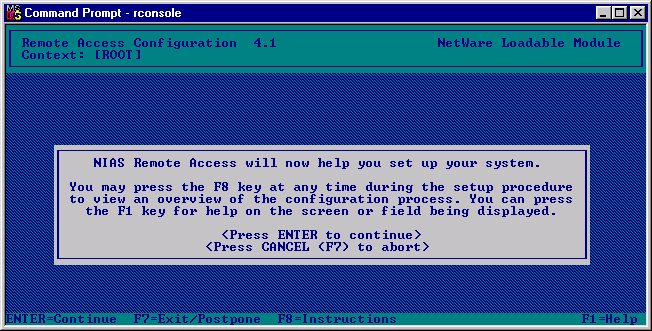
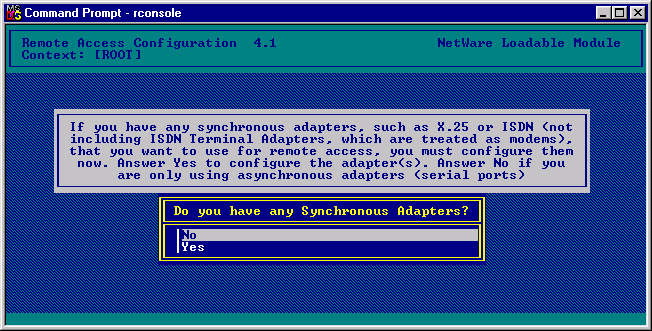
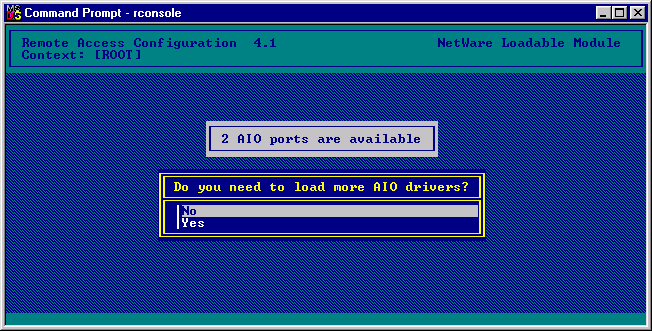
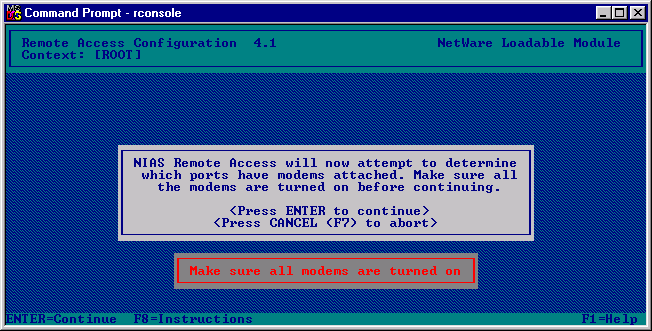
This will now allow you to access the internet. Complete and save the settings, come out of the application and reboot the server to enable any of the protocol and application changes.
To test the internet access.
After the server has been rebooted go to the command console and load the ping application.
LOAD PING
This application allows the server to test routing communication and the initiation of the call out to the internet by the server.
Enter an IP address of a server you know to test the communication.
The Dial Pipex DNS server 158.43.240.3
It may fail for approximately 25 times for it to initiate the call, but if the modem's speaker can be heard you will here it connecting.
Note: You may now use your server as a gateway onto the internet. (By setting the TCP/IP Gateway setting on the workstations to the LAN side TCP/IP address of the server.)
6.0 Install Novell BorderManager
Please Note: You are legitimately licensed to operate with the BorderManager FastCache software but not for other aspects of the BorderManager software. At present this procedure installs the trial software, if the SBS licenses only are installed then the software will fail the FastCache load on the server. This is because of licensing issues which will hopefully be addressed by Novell shortly (see TIDs: 10051637,2921394, 2947242,10019056,2940501,and 10011000)
Installing the software:
Go to the Netware server and go to the graphical interface, press the "Novell" button in the left-hand bottom corner to run the "Install" utility.
Select New Product
Enter the Path as file:///NSBS5:\PRODUCTS\BMEE3 (if the CDROM is in the drive).
It will now say initializing Bordermanager 3.0 Installation.
During the installation process it will be necessary to install the trial licenses to enable the software.
7.0 Installing the administrative Snap-ins
In the \PRODUCTS\BMEE3\BORDER30\PUBLIC\BRDRMGR\SNAPINS directory on the 1st Small Business Suite CDROM is a SETUP.EXE, run this to install the snap-ins onto the administration machine.